Step-by-step pictures for the things people ask about most. The pulsing circles show exactly where to tap.
Do this once. After that, NoctO₂ finds your device by itself whenever it’s on and nearby.
Put the oximeter on so its screen lights up. Most models switch off when they’re not on a finger.

Open the Devices tab and tap Add a device. Allow Bluetooth if the iPhone asks.

It appears in the list within a few seconds. Tap it, and the Live tab starts showing readings.
NoctO₂ alarms are iPhone notifications. Two switches in iPhone Settings make the difference at night.
 NoctO2
Open the iPhone’s Settings app, tap Notifications, then scroll to NoctO2.
Check Allow Notifications is on, then switch on Time Sensitive Notifications and Sounds. Time Sensitive alarms get through Focus summaries.

In NoctO₂’s Alerts tab, use Test alert. Lock the iPhone and wait a few seconds: you should hear it.
Sleep Focus and Do Not Disturb silence apps unless you allow them. Add NoctO₂ once and its alarms come through all night. Family members should do this too.
Open Settings, tap Focus, then Sleep. Do the same later for Do Not Disturb if you use it at night.
Under Allow notifications, tap Apps.
NoctO2⊖Tap Add Apps, choose NoctO2, and keep Time Sensitive Notifications on. That’s it.
A few habits make overnight monitoring dependable.
Keep the iPhone on its charger, within a couple of metres of the oximeter. Monitoring continues with the screen locked.

Settings (gear) → Monitoring → Backup alert. It warns you if readings stop arriving, for example if the ring slips off or the app is closed.
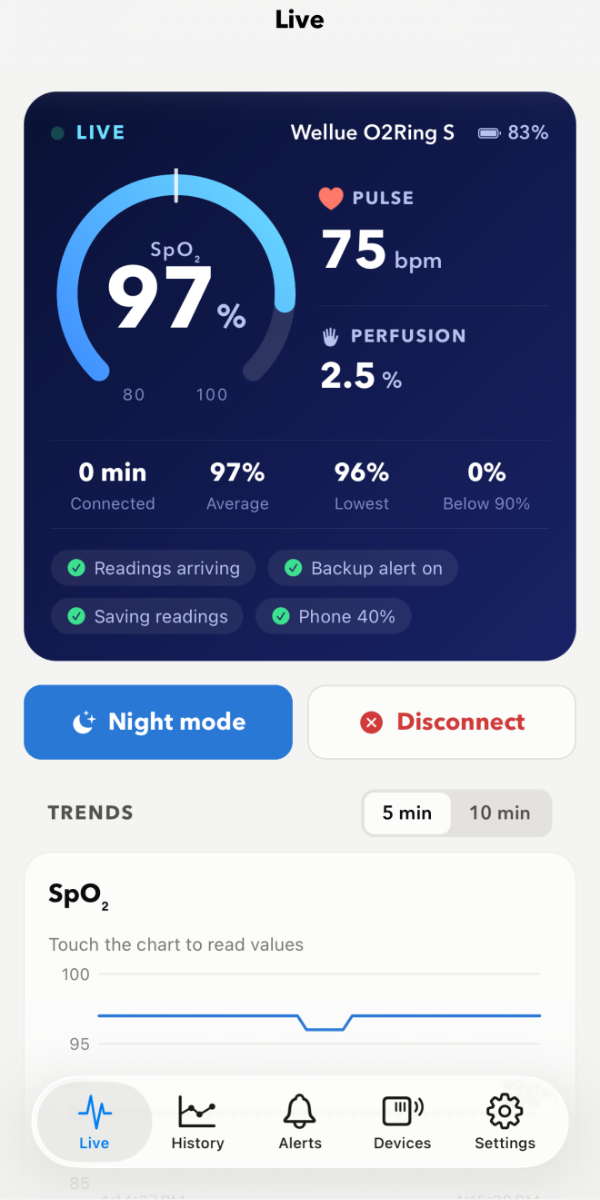
The status chips should be green: Readings arriving, Backup alert on, Saving readings and the phone’s battery.
Many oximeters record on their own. NoctO₂ downloads those nights and keeps everything in the History tab.
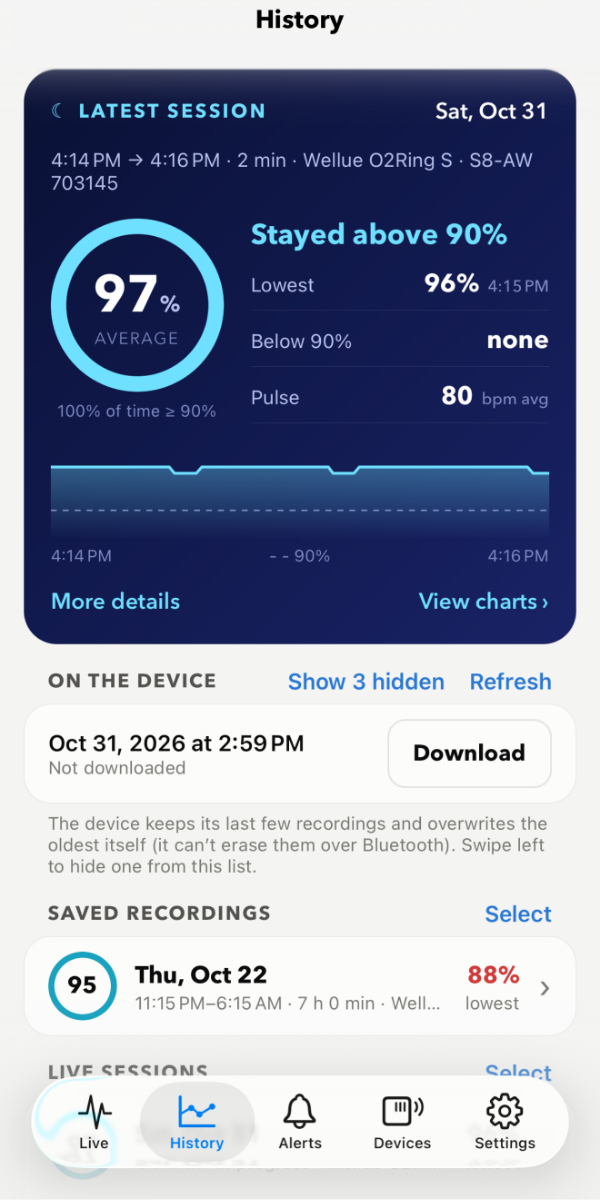
Recordings stored on the oximeter appear under On the device, and download automatically when it connects. Tap Download to fetch one now.

Tap a recording for its summary: average and lowest SpO₂, time below your limit, pulse, and the full chart.
Settings (gear) → Demo Mode → choose a demo → Start demo. NoctO₂ plays a simulated night with real alarms, so you can try everything, family alerts included. Stop it on the same page.
Write to us with your iPhone model, your oximeter model and what happened. You can attach the troubleshooting log from Settings → Diagnostics.